A performance, not a slideshow.
Photo to rap video means your portraits become the performers in a moving music clip. You are not arranging still pictures over a beat. With Hotel Lobby AI, both people appear in the same orange booth, sharing a hanging microphone and the energy of a ready-made performance.
The template sets the music, movement and scene. Your part is choosing the faces. The finished clip is a 10-second, 16:9 landscape MP4 with sound included, so you can watch it, save it or send it straight to your friends.
Start with faces we can see.
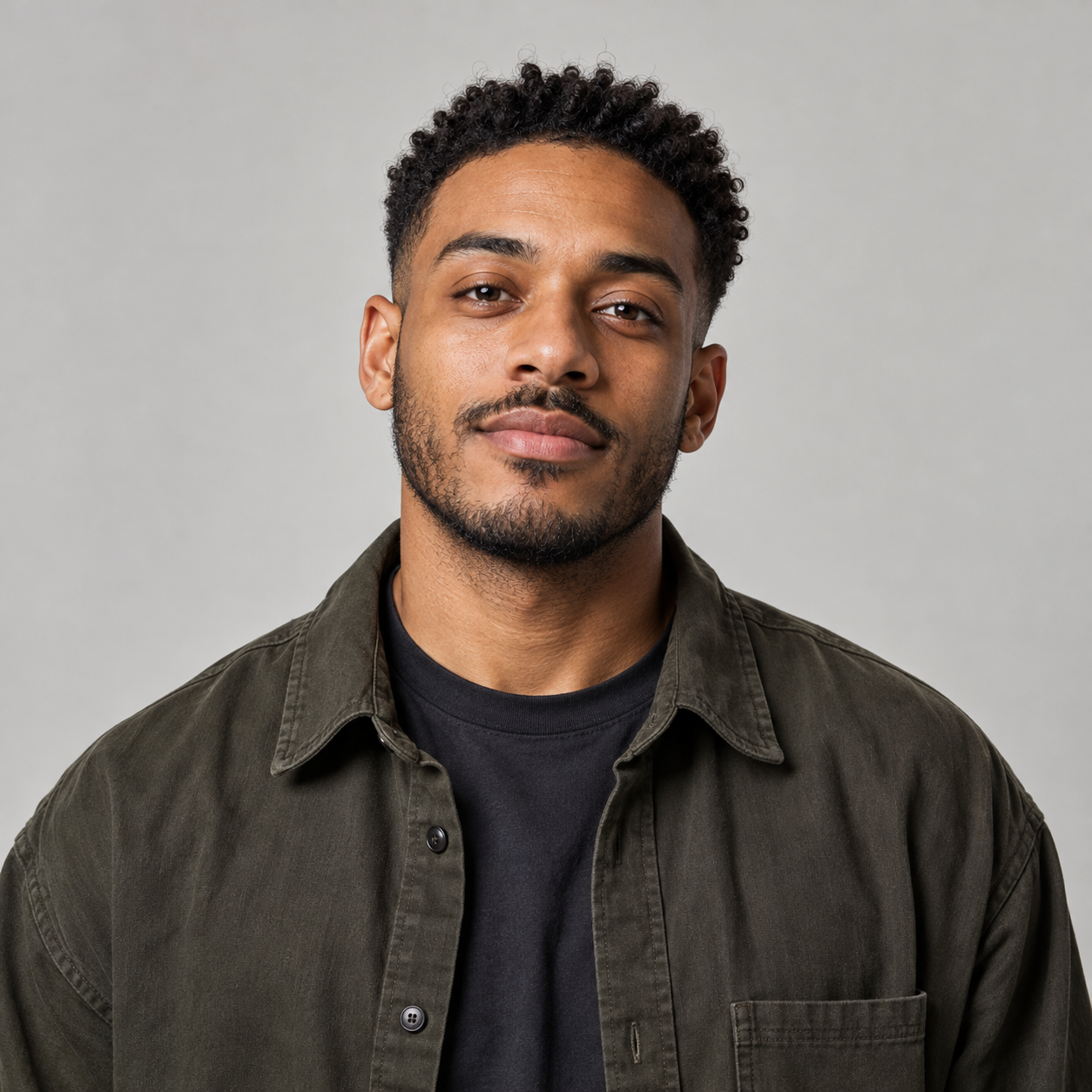
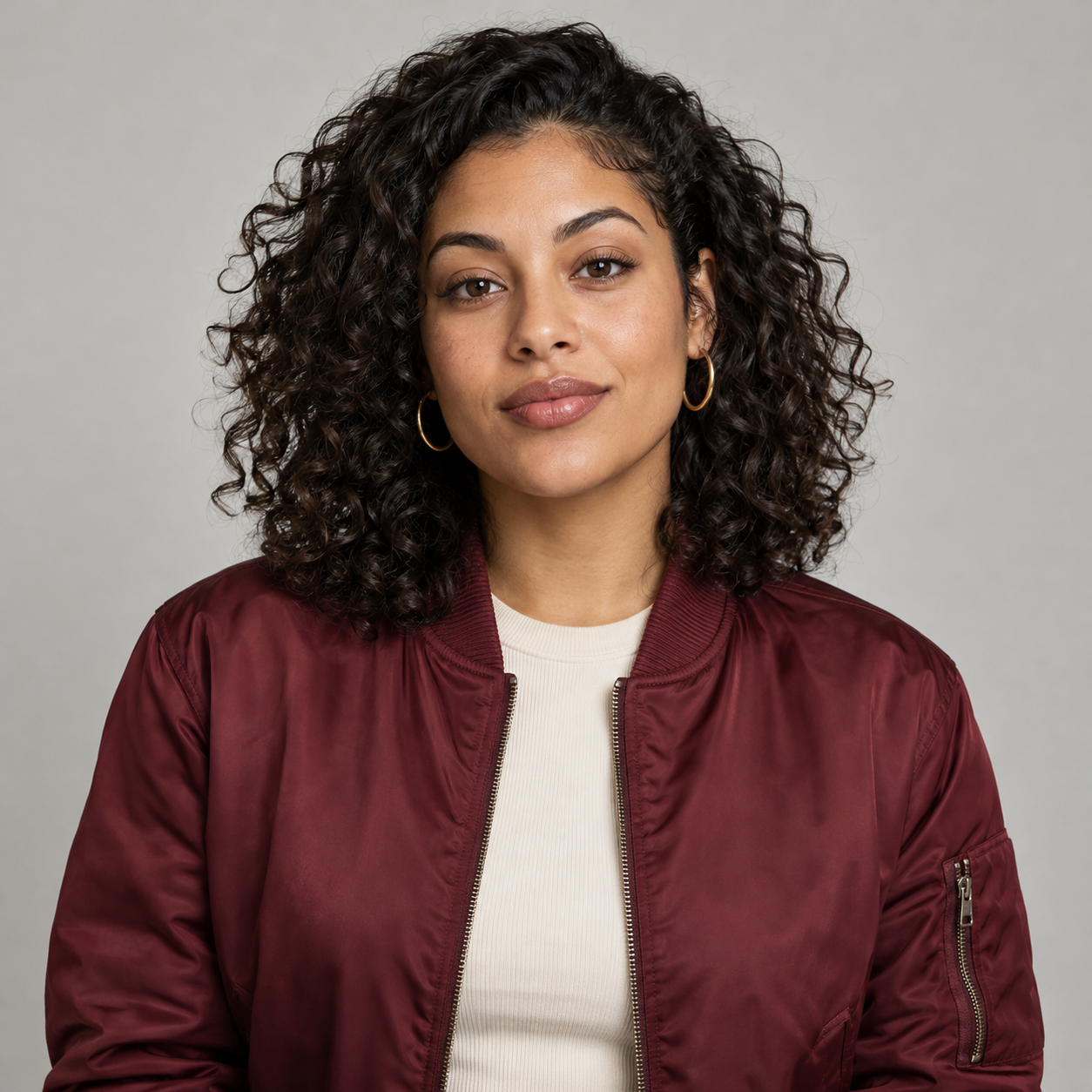
Choose one separate portrait for each performer. A head-and-shoulders photo is an easy starting point: the face is large enough to see clearly, with a little room around the head. Photos from different phones or different days are fine; you do not need to pose together.
Before uploading, open each picture at full size. If the eyes or mouth already look blurry, pick another shot. A cleaner source gives the video more facial detail to work with.
Keep the face clear
Look toward the camera. Choose soft, even lighting and a relaxed expression. Keep hair, hands and sunglasses away from the eyes and mouth.
Give each person a slot
Upload one person as the lead artist and the other as the hype partner. Use Swap performers in the studio to switch their places before generating.
Use the original file
JPG, PNG and WebP work, up to 10 MB each. A saved original is usually clearer than a screenshot of a tiny profile picture.
Two uploads. One big entrance.
Open the studio and add your two portraits, or select Photo example to try the setup with the provided pair. Check the two photo slots before pressing Generate rap video. You can replace either image without starting over.
Sign in to keep the finished performance in My videos. Each Hotel Lobby AI generation uses one video credit. If your balance is empty, the studio opens the video packs while keeping your photos ready. After payment, the saved setup continues into generation.
Keep the full frame. Share the moment.
Watch the finished take with sound, then download the MP4 from My videos. The wide frame gives both performers room. It works well for group chats, landscape posts and playing back on a bigger screen.
For a vertical feed, place the complete clip on a portrait canvas in your usual editor and add a short caption above it. That keeps your partner in the shot instead of cropping the performance down to one face. Our TikTok guide walks through this layout.